
Better xCloud is a powerful browser-based enhancement for Microsoft’s xCloud gaming service. It is designed to deliver a smoother, customizable cloud gaming experience, unlocking features and optimizations that help you get the most out of xCloud on any device.
This tool will enhance your cloud gaming experience by providing improved performance, better controls, and more customization than the standard xCloud platform. It is ideal for gamers looking for smoother, faster, and more enjoyable gameplay on any device.
Best Better xCloud Client For Your Device
It is very important to choose the right client or version for your device (desktop or laptop computer, mobile, tablet, or even TV) for the best experience. A short list of exactly which client will be best for which device is included below, keeping your convenience in mind.
Let’s take a look at the clients,
| Windows | Chrome, Edge, or any Chromium variants |
| macOS | Chrome, Edge, or any Chromium variants |
| Android / Meta Quest | Android application |
| iOS / iPadOS | Safari browser |
| Android TV / LG TV | Android application or Edge Browser |
| Linux / SteamOS | Chrome, Edge, or any Chromium variants |
| LG TV | Chromium and webOS |
Don’t see the browser you use in the table?
If your browser supports Tampermonkey/Userscripts, you can use this tool easily.
Better xCloud Features
It is a powerful enhancement tool designed to take Xbox Cloud Gaming far beyond its default limits. It unlocks higher visual quality, deeper control customization, and smarter performance options across browsers, Android devices, smart TVs, and more.
Some of the best features are mentioned below,
High Visual Quality (1080p/High Codec)
The most amazing thing is that it allows you to force 1080p resolution on all devices, including browsers and Android, and typically enables the highest available video codec profile.
It increases sharpness and detail compared to the default settings.
Clarity Boost
It improves the clarity of stream images beyond standard output. You can select different rendering methods (such as WebGL2 with AMD FidelityFX) to balance quality vs performance.
How To Use Clarity Boost
Let’s learn how to use this feature,
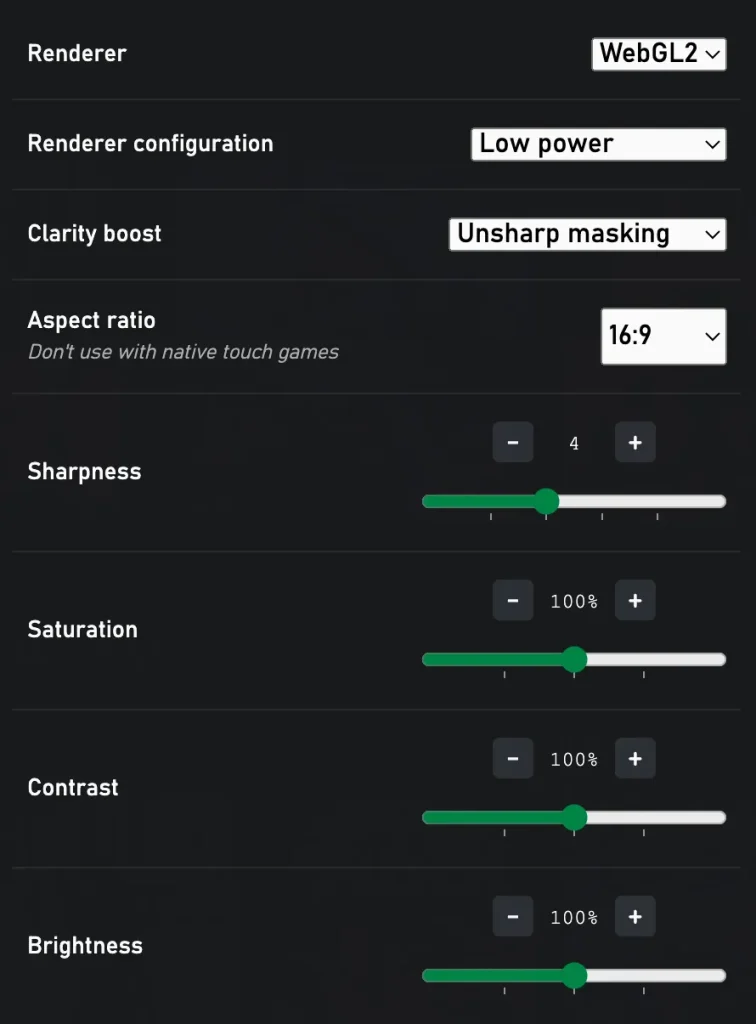
- Disable the default Microsoft Edge Clarity Boost feature first.
- Go to Better xCloud Stream settings.
- Navigate to the Audio and Video tab.
- Make the desired adjustments.
It aims to provide clearer visuals, especially on large screens or low-quality streams.
Video Filters
You can easily adjust brightness, contrast, saturation, and other filtering options while streaming, helpful for tuning visuals based on lighting, display type, or personal preference.
Volume Control
The volume control adds an audio booster, allowing you to increase the volume of cloud streams by up to 600% and fine-tune audio levels regardless of your device’s volume.
Mouse / Keyboard Support
You can now easily play xCloud games with a mouse and keyboard on desktop browsers and Android. Better xCloud offers both native support (where available) and virtual controller emulation, where keyboard/mouse inputs map to controller buttons.
How To Use Native Mouse / Keyboard
Let’s learn how to use the native keyboard and mouse feature,
- Install the Better xCloud Android APK file.
- Go to Settings > Mouse & Keyboard > Native Mouse & Keyboard, then switch it to On.
- Connect your mouse and keyboard to your Android device.
- Launch a game that supports native mouse and keyboard input.
- Press F8 from the keyboard to toggle the feature on or off.
Enjoy your enhanced gaming experience.
How To Use Virtual Controller
Let’s learn how to use the virtual controller feature,
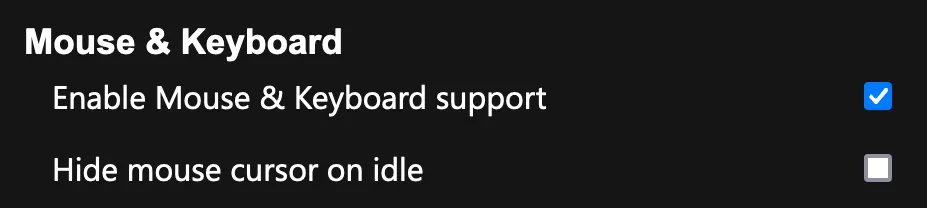
- Go to Better xCloud Settings > Mouse & Keyboard, and enable Mouse & Keyboard.
- Launch any game and tap the message to lock your mouse and begin controller emulation.
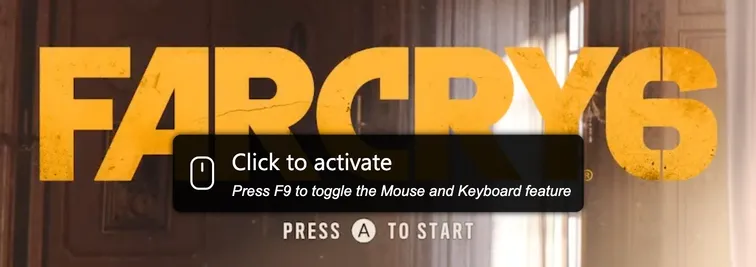
- Press Esc to unlock the mouse cursor and stop the controller emulation.
- Press F8 to quickly toggle this feature on or off.
- Use Remapper in Stream Settings> Mouse & Keyboard to create multiple presets for different games.
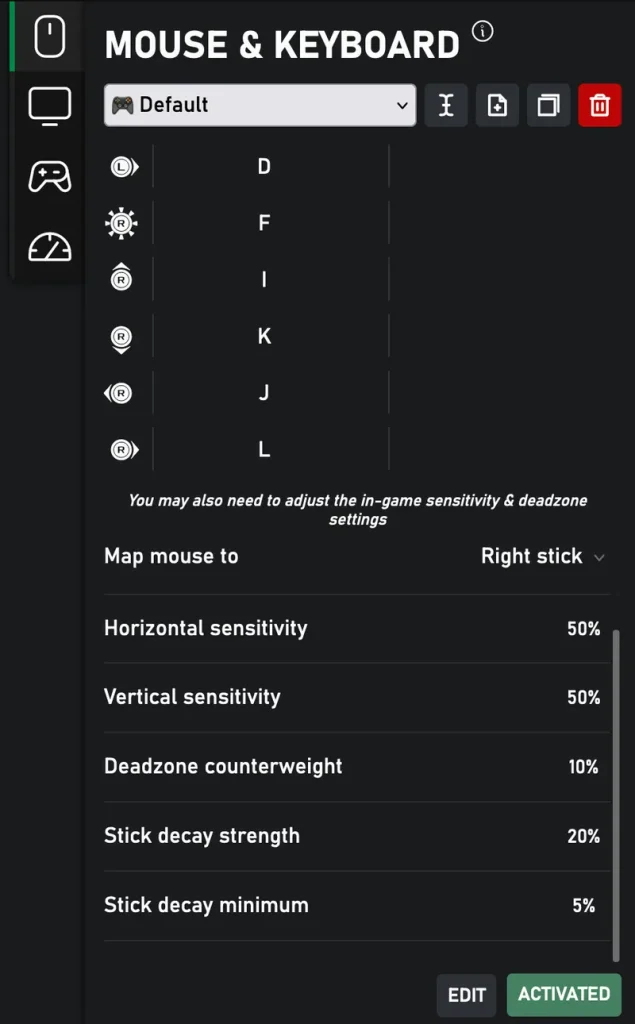
Also remember that,
Using this virtual controller feature in online games may be considered unfair, as it functions similarly to devices like XIM. If a game has mouse or input-detection systems, there is a risk of being banned. This warning applies to all remapping software or extensions.
Touch Controller Improvements
For devices with touchscreens, this tool:
- Enables touch controls in all games, even those without built-in support
- Lets you choose different touch button styles and customize layouts per game
- Can turn touch UI off if you’re using an external controller or device
Local Co-op Support
Xbox Cloud Gaming doesn’t support local multiplayer, they accepts one active controller/player at a time. But, Better xCloud changes this by emulating additional controllers so that the cloud stream can interpret multiple inputs, enabling local co-op in some games.
How To Enable Local Co-op Support
- Open the Better xCloud.
- Go to the Settings and enable this feature.

That’s it.
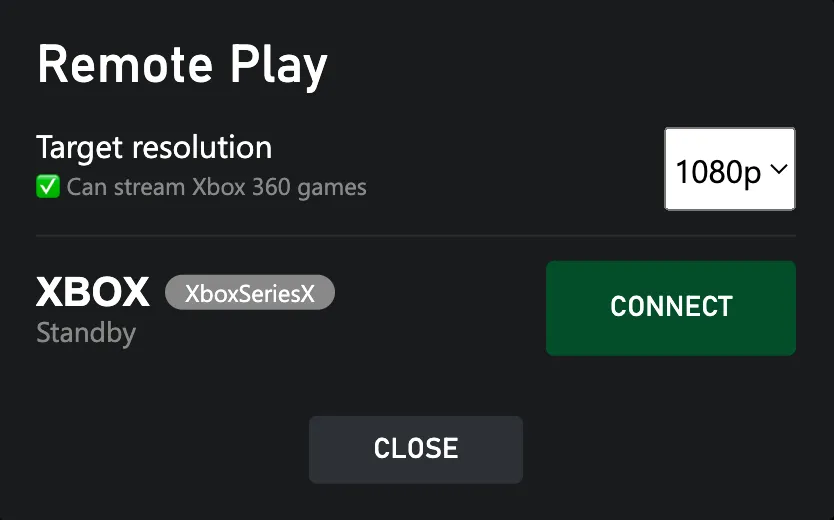
Remote Play Support
Better xCloud tool includes a remote play feature integrated into the web interface, letting you stream your own Xbox console over the internet, with no issues.
This supports:
- Streaming even outside your home network
- Playing Xbox 360 games with 1080p resolution
- Allowing you to use Remote Play in the browser
How To Set Up Remote Play On Xbox
Let’s learn how to set up,
- From the console, go to Settings > Network Settings > Advanced settings, and take a note of the IP address, Subnet Mask, Gateway, and DNS values.
- Go to the IP settings > Static, and enter the values you noted in the previous step.
- Save.
- Follow the Xbox official guide to activate the Remote Play feature.
- Now, you have to configure port forwarding on your network.
- Ensure your Xbox shows an Open NAT status.
- Go to the settings in Better xCloud.
- Tick the box for Enable Remote Play.
- Refresh the page.
You should now see the Remote Play button beside your profile picture.
That’s it.
Regional Server Selection
You can choose which server region to connect to instead of using the default. This is especially useful if you are far from the nearest regional node or want to test for low latency.
Prefer IPv6 Servers
If your network supports it, Better xCloud lets you select IPv6, which can reduce latency and improve the stability of some connections, which is pretty awesome.
Interface Customization
- Simplify navigation when using controllers or remotes
- Remove chat/friends overlay to reduce clutter
- Hide labels, mute animations, or remove sections you don’t need
- Saves seconds when loading games
- Switch to a smart-TV-style layout for larger screens or TVs
Loading and Status Enhancements
It shows estimated queue wait times, art on loading screens, and even stream details like current resolution/bitrate, battery level, etc., helpful information you wouldn’t otherwise get.
Stream Stats
There is a real-time statistics overlay that shows key performance metrics during your cloud gaming session. These statistics help you understand how well your stream is performing and troubleshoot issues like lag, frame drops, or packet loss.
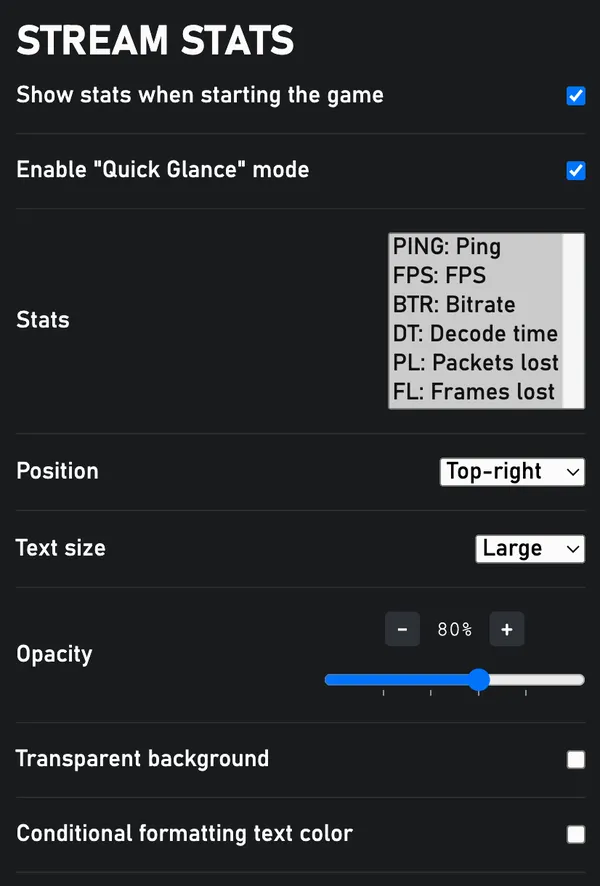
You can change anything from the Stream Settings while playing.
The meaning of the stats,
| PING | Round-Trip Time | Time it takes data to go to the server and back. |
| FPS | Frames Per Second | Number of frames the stream decoded in the last second. |
| DT | Decode Time | Time to decode each frame. |
| BR | Bitrate | Amount of data received per second. |
| PL | Packets Lost | Number of lost data packets. |
| FL | Frames Lost | Count of dropped frames before display. |
This data comes from the WebRTC API.
And the stats bar updates every second.

Stream Screenshot
It includes a built‑in screenshot capture feature that lets you take pictures of your Xbox Cloud Gaming (xCloud) stream directly while playing. It works on both desktop browsers and mobile devices, though it’s especially designed with mobile users in mind.
How To Enable Stream Screenshot Feature
Let’s learn how to take a screenshot,
- Turn on this feature in Settings.
- Now, start a game.
- Tap once on the bottom left or right corner to display the Screenshot button.
- Press the Screenshot button to capture an image.
The browser will automatically save the screenshot.
Other Features
- Mouse cursor auto-hides for a cleaner gaming view
- Customize controller vibration or disable connection pop-ups
- User-Agent spoofing to run xCloud on unsupported browsers
- Aspect ratio control for screens outside of 16:9 screens
- Skip post-stream feedback dialogs and jump back into gaming
There are also several other groundbreaking features, and many more will be added in the future, which you will be able to easily use and enjoy on any of your internet-connected devices.
How To Fix “Failed to run Better xCloud” Error
This issue is mainly caused by Tampermonkey, not Better xCloud.
If you’re using the Tampermonkey extension on a Chromium-based browser, you must enable Developer Mode. This requirement was introduced with Chrome’s Manifest V3 update.
Follow these steps to fix the issue,
- Open Tampermonkey Dashboard and confirm the script is installed correctly.
- Go to your browser’s Extensions page.
- Enable Developer Mode by toggling it in the top-right corner.
- Reload the xCloud website.
If the problem continues, adjust these settings in Tampermonkey Settings:
- Go to the General > Config Mode > Advanced
- Security > Content Script API > UserScript API Dynamic
- Experimental > Inject Mode > Instant.
After making these changes, reload the xCloud website.
Why This App Is Not On Xbox, Android, Apple Store?
It is not available on Xbox, Google Play Store, or Apple App Store, mainly due to store rules regarding content reviews, catalog streaming, etc. These rules make it impossible to launch this third-party application or tool without significant compromises.
That’s why you have to download this tool from our website for the latest version.
Is Better xCloud Safe
It is 100% safe to use on your device.
The project is built with full transparency in mind, allowing anyone to review the source code and see exactly how it functions. Even though this is not an official Microsoft product, I, my team, and other contributors, still make security and privacy a top priority.
Your Xbox account credentials, session data, and tokens are never collected, stored, or sent to any third-party servers or external services. All operations are handled locally on your device or browser, interacting only with Microsoft’s official Xbox Cloud Gaming infrastructure.
This local-first design ensures improved privacy, enhanced security, and greater control over your gaming experience. And you can use Better xCloud securely on a browser, computer device, Android device, or smart TV, keeping your data safe.
Frequently Asked Questions (FAQs)
In this frequently asked questions section, I will answer the most common questions about using the app, its features, and device compatibility. You will find answers here to any questions you may have about performance, settings, security, or this app.
What is the Better xCloud app?
It is mainly an enhanced tool that improves the Xbox Cloud Gaming experience with better performance, visuals, and control options compared to the default web version.
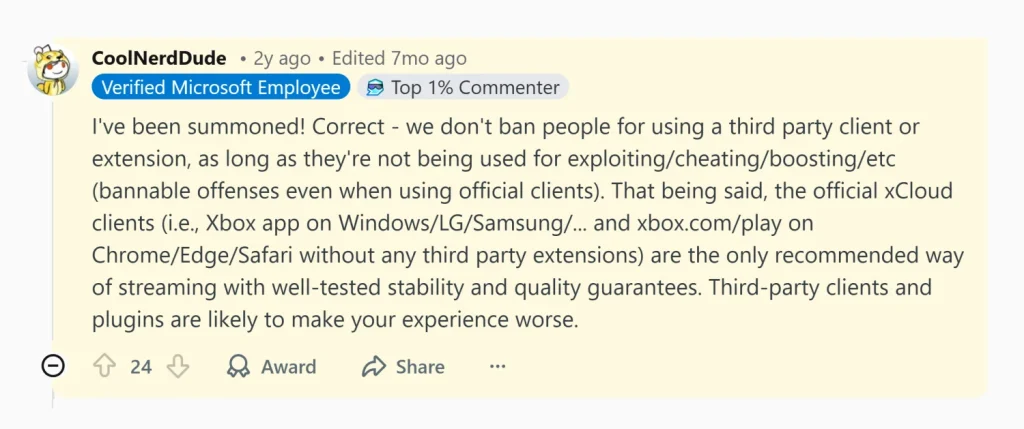
Will I get banned for using this?
The official xCloud developers have previously endorsed Better xCloud and confirmed that “users are not banned for using a third-party client or extension.” Still, use it at your own risk.
Why is it a Userscript and not an extension?
Remember that, many browsers on Android and iOS don’t fully support extensions, and some extensions can’t be installed at all. That’s why it’s delivered as a Userscript.
Can I use this with the Xbox Android app?
No, the app would need modifications to work.
Can it request a lower FPS or increase the maximum bitrate (15 Mbps)?
No, the server controls these settings.
Why don’t all games work?
Your device might lag on high-framerate or high-bitrate games. 30 FPS lock isn’t available.
Why can’t I click the Settings and Refresh buttons on Android TV?
It isn’t fully optimized for TV. To interact with the UI, use an air-mouse or a Bluetooth mouse.
Is this application free to use?
Yes, it is 100% free. There are no ads, subscriptions, or hidden charges.
I hope this FAQ helps you get the most out of Better xCloud.
Disclaimer
By using this tool, you acknowledge and accept that you do so entirely at your own risk. The creators and maintainers of this tool are not responsible or liable for any issues, damages, or unintended consequences that may occur as a result of its use.
And also note that,
This project is entirely independent and is not affiliated, endorsed, or officially supported by Xbox. All references, including logos, icons, and trademarks, are the property of their respective owners and are used solely for informational, educational, etc. purposes.