
Better xCloud is an advanced script that significantly improves the Xbox Cloud gaming experience on Windows PCs and laptops. It unlocks advanced features, performance optimizations, and customization options that are not available in the default xCloud interface.
How To Download Better xCloud PC Version
Let’s learn how to use it on your Windows PC or laptop easily,
- Install the Tampermonkey extension from the Chrome Web Store.
Important Note: You may need to enable Developer Mode (open Google Chrome browser > three-dot menu in the top-right corner > Extensions → Manage Extensions > toggle Developer mode) in your browser for Tampermonkey to function correctly.
- Install the Better xCloud Script.
- Visit xbox.com/play
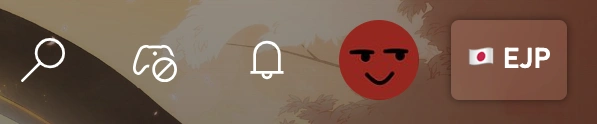
Click the new button located next to your profile picture to configure the settings.
That’s all.
You can also use it on your Mac device using the same method.
Better xCloud PC Features
This app is also designed for Windows (operating system) desktop or laptop computers, so that you can easily use it on your device without any lagging. However, for the convenience of the user, I have included some of the important features it has below.
Let’s see some of the features,
- Smooth gameplay with high streaming quality, low lag, and stability
- Unlock better resolution settings, bitrate control, and sharper visuals
- Experience faster response times and improved controller accuracy
- Play in full-screen mode with customizable display settings
- Works seamlessly on Chrome, Edge, etc. Chromium-based browsers
- Improved audio sync and streaming tweaks
- Access additional settings easily
- 100% safe to use on your computer or laptop
There are also many other features that you can enjoy.
You can also use it on your Android and Android Browser easily.
Supported Devices
It is designed to work seamlessly across a wide variety of Windows devices, making cloud gaming more accessible and enjoyable for users with different hardware setups. A list of exactly which Windows versions it can be used on is included below.
It supports all modern versions of Windows, including:
- Windows 11
- Windows 10
- Windows 8.1
- Windows 8
- Windows XP
And many more.
Supported Hardware
It runs well on most laptops and desktops, with the following specifications,
- Processor: Dual-core or better (Intel or AMD)
- RAM: 4 GB or higher
- Internet Connection: Stable broadband with at least 10 Mbps
- Graphics: Integrated or dedicated GPU capable of handling video streaming
These requirements are flexible.
Yeah, higher specs result in better streaming performance and visual quality.
Browser Compatibility
Unlike traditional native apps, it works through popular web browsers, giving you the flexibility to install no heavy software. Below is a short list of exactly which browsers it will run well on, so that you can easily understand which one you will be able to use.
Let’s take a look at them.
- Microsoft Edge
- Google Chrome
- Other Chromium-based browsers
Controllers
You can play using a variety of input devices,
- Keyboard and Mouse
- Xbox Controllers (Wired/Wireless)
- Bluetooth/USB Gamepads
Display Support
It adapts to most display setups, including single or multi-monitor configurations.
Conclusion
Better xCloud PC version makes cloud gaming more flexible, powerful, and accessible.
And most importantly, it doesn’t matter if you’re using Windows 10 or Windows 11, a desktop setup or a lightweight laptop, it delivers enhanced streaming performance, broad browser compatibility, and support for multiple controllers and display configurations.
It ensures that you can enjoy a smoother, more customizable gaming experience.