
Better xCloud Mac version enhances your Xbox Cloud Gaming experience with improved performance, features, and greater control over your gameplay. It works seamlessly across modern browsers, delivering a smoother, more customizable experience on macOS.
How To Download Better xCloud Mac Version
Let’s learn how to use it on macOS easily,
- Install the Tampermonkey extension from the Chrome Web Store.
Important Note: You may need to enable Developer Mode (open the Google Chrome > three-dot menu in the top-right corner > Extensions → Manage Extensions > toggle Developer mode) in your browser for Tampermonkey to function correctly.
- Install the Better xCloud Script.
- Visit xbox.com/play
Click the new button located next to your profile picture to configure the settings.
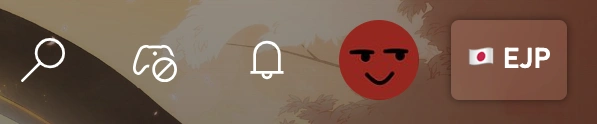
That’s all.
You can even use it on your iOS or iPad devices.
Better xCloud for Safari Browser
⚠️ For the best experience, try to use the above method instead of Safari browser.
Follow the procedure below to use it in your Safari browser.
- Download and install the Userscripts app from the App Store.
- Open Safari browser, click the Userscripts button, and select Open Save Location.
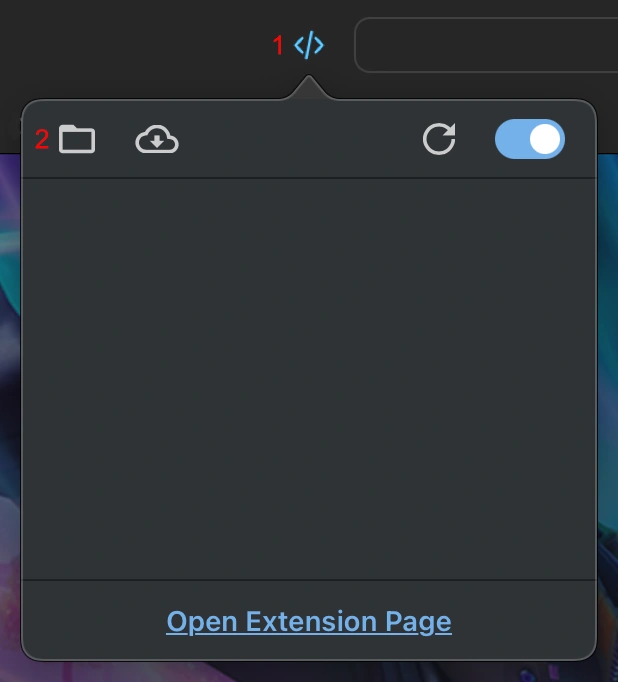
- Download the Better xCloud script and save it to the folder opened in Step 2.
- Go to xbox.com/play.
- Confirm that the Better xCloud script appears in the Userscripts pop-up.
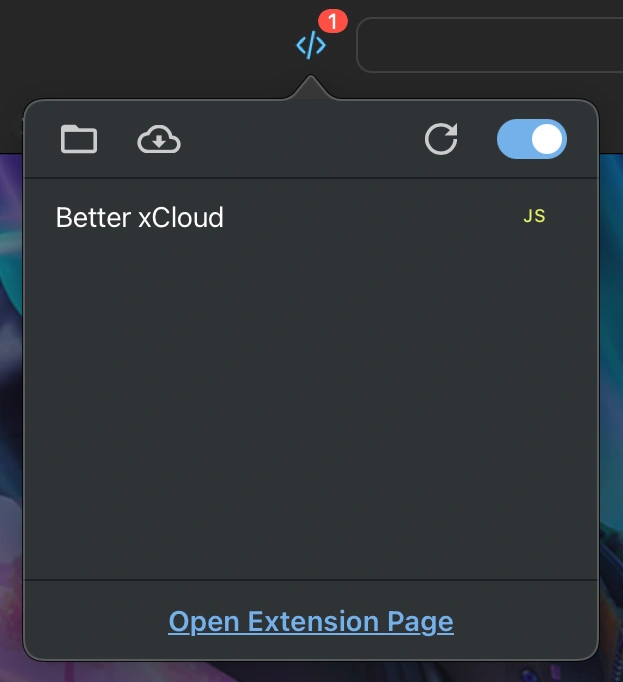
Once the setup is complete, a new button will appear next to your profile picture.
That’s all.
Better xCloud Mac Features
It is a powerful tool designed to improve your gaming experience on macOS. Instead of relying on the standard web version alone, this tool unlocks additional settings, performance tweaks, and visual improvements that make streaming smoother and more responsive.
Let’s see some of the best features of it,
- Improves overall Xbox Cloud Gaming performance on Mac browsers
- Adjust bitrate, resolution, and visual settings for smoother gameplay
- Match the game display with your Mac screen for a full-screen experience
- Helps reduce lag for faster and more responsive gaming
- Unlock extra performance and visual customization options
- Works directly from supported macOS browsers
- Supports Xbox, PlayStation, and third-party controllers with low input delay
- Enhances Xbox Cloud Gaming without affecting your account or data
There are more amazing features that you will be able to enjoy.
Supported Devices
It works on most modern Mac devices that support Xbox Cloud Gaming.
This includes:
- MacBook Air (Intel and Apple Silicon – M1, M2, M3)
- MacBook Pro (Intel and Apple Silicon models)
- iMac (Intel and Apple Silicon)
- Mac Mini (Intel and Apple Silicon)
- Mac Studio
- Mac Pro
It runs on macOS using a supported browser such as Safari, Chrome, or Edge.
Conclusion
Better xCloud Mac version is a simple yet powerful way to upgrade your Xbox Cloud Gaming experience on macOS. With improved streaming quality, customizable settings, and lower latency, it helps you get the most out of cloud gaming directly from your browser.
It will make your gaming smoother, sharper, and more enjoyable.