
Better xCloud iOS version enhances your Xbox Cloud Gaming experience directly in Safari. It adds performance optimizations and customization options for smoother gameplay, improved visuals, and greater control, so you can get more out of xCloud on your iPhone or iPad.
How To Download Better xCloud iOS Version
Let’s learn how to use it on your iOS devices,
- First, download Better xCloud Script on your device.
- Open the Downloads folder in the Files app, create a new folder named userscripts, and move the
better-xcloud.user.jsfile into it. - Download and install the Userscripts from the App Store.
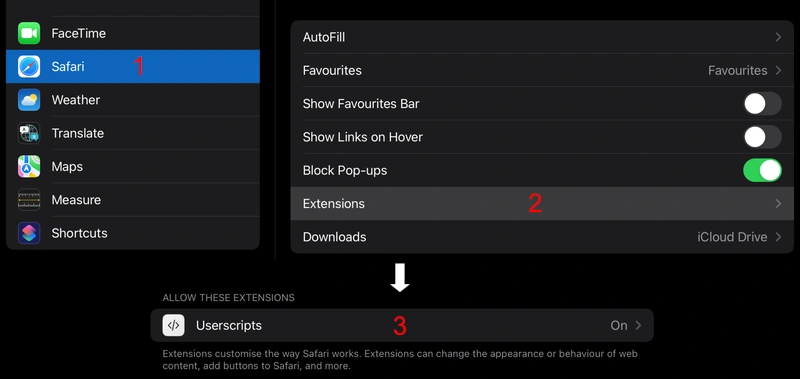
- Open Device Settings > Safari > Extensions, and enable the Userscripts.
- Launch the newly installed Userscripts app from the Home Screen and select Set Userscripts Directory.
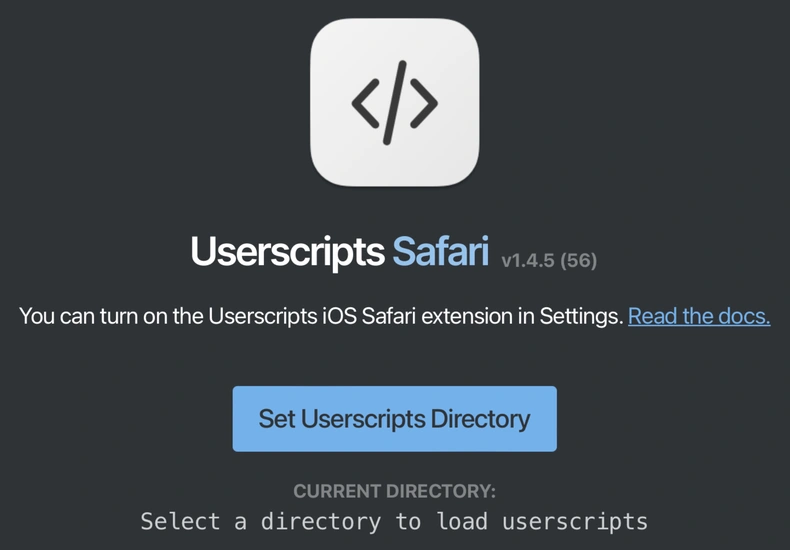
- Choose the Downloads/userscripts folder you created in Step 2.
- Open Safari and navigate to xbox.com/play now.
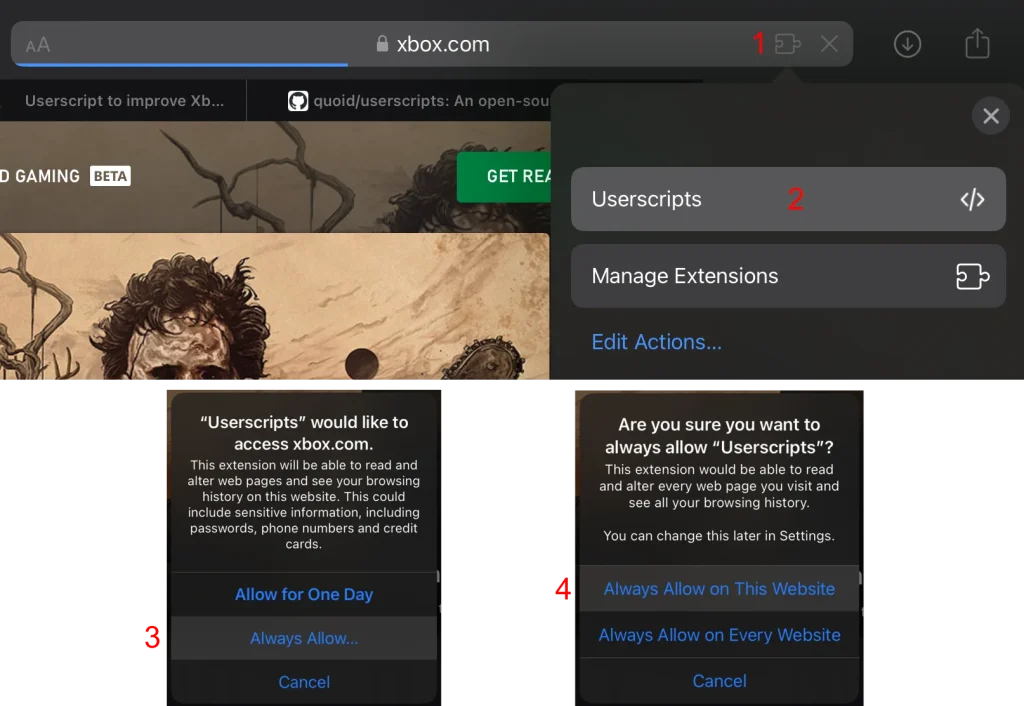
- Click the Extensions button in the address bar, select Userscripts, then enable Always Allow… and Always Allow on This Website.
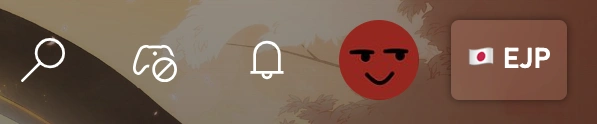
If the setup is successful, a new button will appear next to your profile picture.
That’s all.
You can even use it on your Mac device.
Better xCloud iOS Features
Like other versions, the iOS version also has great features that you can enjoy on your iPhone or iPad devices easily. For your convenience, I have already listed some of the important features below so that you can get an idea of its features right now.
By the way, let’s see some of the best features,
- Forces 1080p streaming for better image quality
- Clarity Boost for sharper visuals and reduced blur
- Improved video quality and bitrate handling
- Touch controls for all games, even those without native touch support
- Customizable on-screen controller layouts
- Stream stats overlay (bitrate, FPS, connection info)
- Cleaner UI options like hide cursor, animations, splash screens, and clutter
- Smart TV–style layout option for a console-like experience
- Screenshot capture directly from the game stream
- Controller status indicators and queue time visibility
- Privacy controls such as disabling analytics and social features
There are also many more features.
Supported Devices
It works on a wide variety of iPhone and iPad models. For your convenience, I have listed a small list of exactly which devices it supports below. You will be able to use this application with ease only if your current device (smartphone/tablet) meets the requirements.
Supported devices include,
- iPhone models running recent versions of iOS
- iPhone SE (1st, 2nd, 3rd gen)
- iPhone 8 and newer
- iPad models running recent versions of iPadOS
- iPad Pro (all sizes)
- iPad Air (3rd gen and newer)
- iPad (standard) models running compatible iPadOS
- iPad mini (5th gen and newer)
Requirements:
- Up-to-date Safari browser with Better xCloud script installed
- Stable Wi-Fi or mobile data connection for best streaming performance
- Bluetooth controllers like Xbox, PlayStation, or MFi-certified controllers
Final Part
Better xCloud iOS version transforms the standard gaming experience into something smoother, sharper, and more customizable. By unlocking higher streaming quality, enhanced touch controls, stream stats, and a cleaner UI, it gives users more control over how they play.
Since it runs directly through Safari, there’s no need for a native app.
Just set it up and enjoy a more powerful cloud gaming experience on your Apple device.